


In this series, we’ve already looked at sales videos, training videos, and event clips. Maybe you also have product demos, support walkthroughs, webinar clips, internal guides, customer Q&A recordings, or short screen recordings from different teams.
The videos exist. Now what?
Our training video post already touched on this point: videos shouldn’t disappear into random Teams conversations. If people can’t find the video, it does not matter how useful it is.
This time, we’ll go further: how to turn part of your video collection into a knowledge base people can actually use, with Icareus Video Cloud.
At a glance:
- Selecting which existing videos belong in the knowledge base
- Organizing them by purpose, structure, titles, categories, and metadata
- Publishing, restricting, and updating videos
Who is it for?
A knowledge base doesn’t need to be the entire Icareus Video Cloud account. It can be a selected, organized part of it. But before organizing the videos, decide who the knowledge base is for.
- Customer-facing knowledge base: Usually needs answers to common questions, product instructions, troubleshooting videos, and other self-service material.
- Internal knowledge base: May focus on onboarding, internal processes, tools, policies, IT instructions, or standard operating procedures.
- Partner or public-facing knowledge base: May need product material, service information, training content, or event recordings.
The audience affects what belongs in the knowledge base, how the videos should be grouped, and how access should be handled later.
Build the library around the people using it, not around how the videos happened to be created.
Choose what belongs and how to group it
Do not add every video. A knowledge base gets worse when it becomes a dumping ground.
For example, a support knowledge base does not need every screen recording the team has made. A one-off customer case can stay out. A video that explains how to reset a password, export a report, fix a common error, or set up an account probably belongs.
Long recordings may need to be clipped first. If a 45-minute webinar contains one useful two-minute answer, add the clip, not the whole recording.
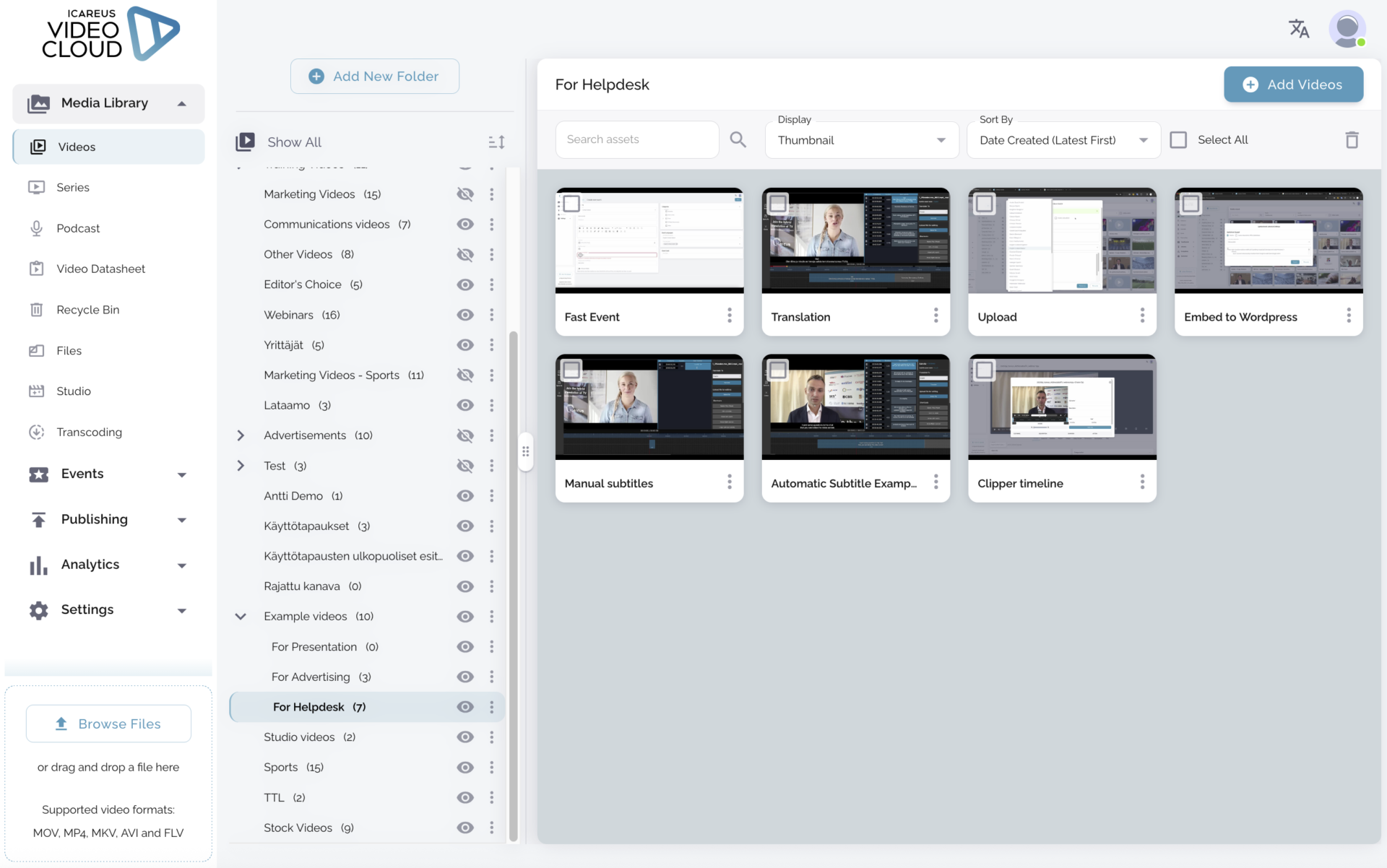
Then group the videos in a way that helps people narrow things down: setup, troubleshooting, reporting, account settings, product features, or common questions.
The point is not to mirror your whole video archive, but to make the answer easier to find.
Make the videos easy to find
Even a well-curated knowledge base will grow. A few videos are easy to manage manually, but a larger library will need help. At some point, people need to search, filter, and browse without knowing exactly where something was stored.
Good titles matter. “Product demo final 2B 2026 v3” may be clear to the person who uploaded it. It’s not useful to someone trying to solve a problem. “How to export a monthly report” is better, because it says what the video helps with.
The same applies to descriptions, categories, tags, metadata, and thumbnails. Use the words people are likely to search for: product names, features, error messages, tasks, customer questions, or process names.
With Icareus Video Cloud, more specific video information can also be searched for; such as cast, distributor, or other details. In a knowledge base, “cast” does not have to mean actors. It can mean webinar speakers, trainers, presenters, interview guests, or people taking part in a recorded discussion.
That matters when people remember who explained something, but not what the video was called.
Search works better when the library is named and organized for the people using it.
Put videos where they are needed
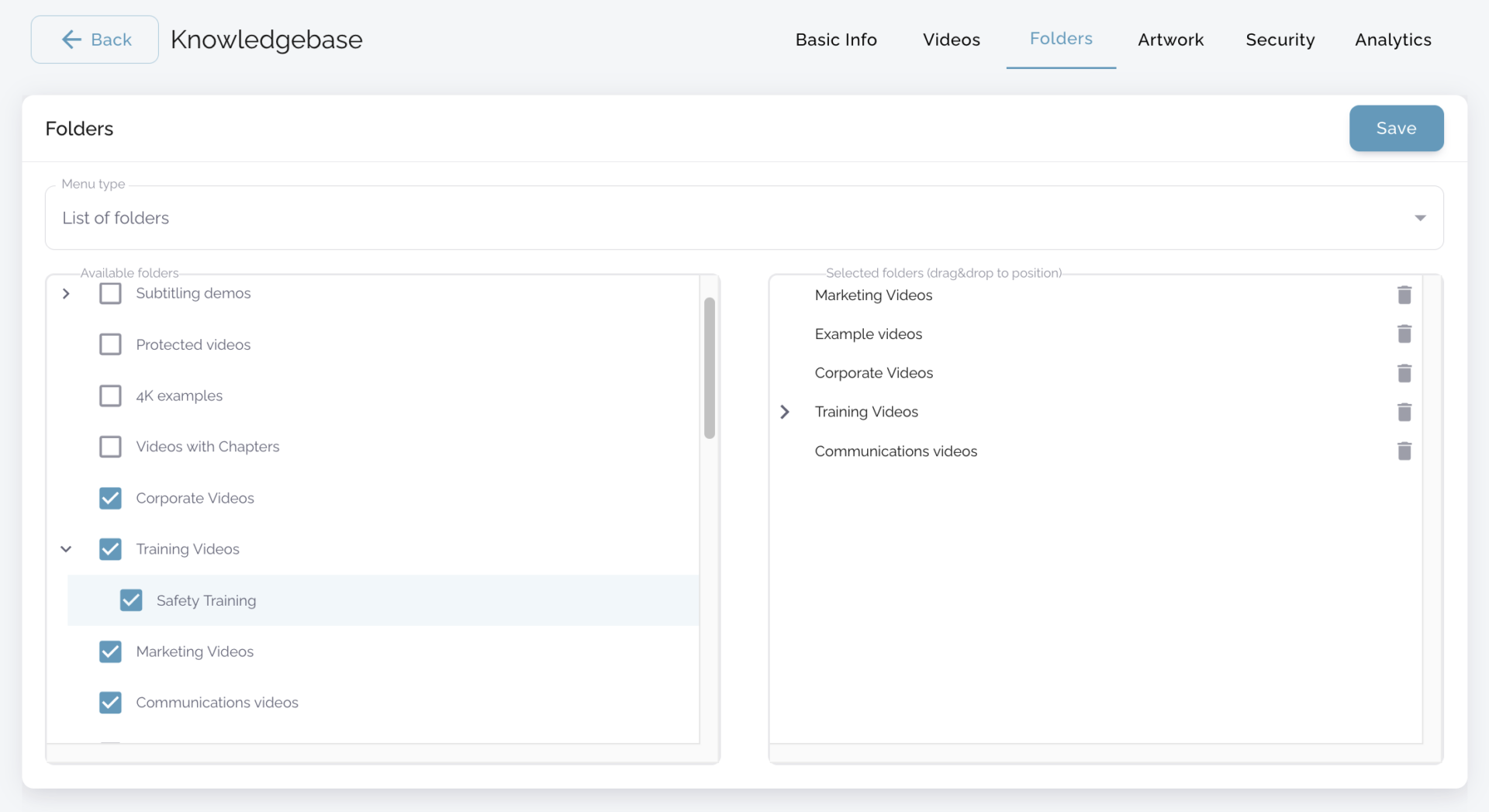
A central library is useful for browsing, searching, and managing the collection. But videos can also be placed where people already look for instructions: helpdesk articles, intranet pages, product documentation, landing pages, or customer service pages.
In Icareus Video Cloud, there are a few ways to do this:
- Single videos work well when you want to embed one specific video into an existing page, article, intranet, product page, or customer service section.
- Video pages are useful for smaller collections or targeted video libraries. They can work as standalone pages or be embedded into your site, with search and folder support.
- Portals are better for larger collections and more complete video hubs. Like video pages, they support search and folders, but they can also include events and event recordings, with more options for building a standalone viewing experience.
Choose based on the size and purpose of the collection.
For one support video, an embedded player may be enough. For a focused set of videos around one topic, a video page may be the better fit. For a larger library with events, recordings, and different content areas, a portal gives the collection more room.
Match access to the audience
Once the knowledge base has a shape, decide who should be able to see it.
If the videos are public self-service material, keep access simple. A public video page or videos embedded in help articles may be enough. The fewer barriers, the better.
If the videos are meant for customers, partners, employees, or a specific team, access should be more controlled. For a video page, you can set a username and password, or restrict it by location or security token. A portal can be set to require user login, which makes it a better fit when the whole video hub is meant for a defined audience.
For single embedded videos, access is usually handled by the place where the video is published: website, intranet, helpdesk, customer portal, or product page. And usually that’s enough.
Language is part of the same decision. Some videos can be shown only in selected language versions of a video page or portal. A Finnish support video does not need to appear in the English help library. A country-specific onboarding video does not need to appear for every team.
Keep it current
A knowledge base is only useful if people can trust it.
If a video shows an old interface, process, or order of steps, it needs to be updated. In Icareus Video Cloud, the same video can be linked to several folders, pages, or portals. When the video is updated, the change follows it everywhere it is used.
The same applies to names and folders. Renaming a video or folder does not break the existing links. The link is based on the video or folder ID, not the visible name.
That means embedded videos, shared links, and published collections do not need to be fixed one by one every time something changes.
Try it
Start with one audience and a small part of the archive.
For example, take ten support videos customers still ask for, use, or get sent as links: account setup, troubleshooting, reporting, product features, or common questions.
Ten videos is enough to see whether the structure holds. If it does, continue with the next ten.
For more detailed instructions on how to do this in Icareus Video Cloud, you can check our Helpdesk.